
How to update Java on Windows, macOS and Linux (2026)
Java still runs a surprising amount of business software: ERP clients, VPN and remote-access tools, banking and document-signing applications, Jenkins, Confluence, Minecraft servers and a long tail of line-of-business apps. An outdated Java runtime is one of the most common findings in vulnerability scans, because security fixes ship every quarter and old versions tend to stay installed next to the new ones. This guide shows you how to check which Java version you have, how to update it on Windows, macOS and Linux, and how to remove the old releases afterwards.
Quick answer: open a terminal or command prompt and run java -version. If the version shown is older than the current update of your long-term support line (Java 25, 21, 17 or 8), install the latest build from your vendor, verify with java -version again, and uninstall the old one.
Which Java version should you be on in 2026?
Java gets a new feature release every March and September, and a new long-term support (LTS) release every two years. Only the LTS releases receive security updates for years, so that is what businesses should standardise on.
| Version | Status in 2026 |
|---|---|
| Java 25 | Current LTS, released September 2025. The default choice for new installations. |
| Java 21 | Previous LTS (September 2023). Fully supported and the most widely deployed modern version. |
| Java 17 | LTS from 2021. Still receiving updates, but plan the move to 21 or 25. |
| Java 11 | LTS from 2018. Past its Oracle Premier Support window; migrate. |
| Java 8 | LTS from 2014 and still everywhere. Oracle sells Extended Support until December 2030, and free OpenJDK 8 builds from vendors such as Eclipse Temurin still receive security fixes. Inventory the applications that need it and upgrade them. |
Non-LTS releases (for example Java 24 or 26) only get updates for six months and do not belong on production machines.
A note on licensing. Oracle JDK 17 and later are free to use in production under Oracle's No-Fee Terms and Conditions, but only until one year after the next LTS ships. Oracle Java 8 and 11 require a paid Java SE subscription for commercial use. If you want free, long-lived updates without a subscription, use an OpenJDK distribution such as Eclipse Temurin (Adoptium), Microsoft Build of OpenJDK or Amazon Corretto.
Check which Java version you have (java -version)
The command is the same on every platform:
- Windows: open the Start menu, type
cmdorWindows Terminal, and runjava -version. - macOS: open Terminal (Applications, Utilities) and run
java -version. - Linux: open a terminal and run
java -version.
Typical output:
openjdk version "21.0.8" 2025-07-15 LTS
OpenJDK Runtime Environment Temurin-21.0.8+9 (build 21.0.8+9-LTS)
OpenJDK 64-Bit Server VM Temurin-21.0.8+9 (build 21.0.8+9-LTS, mixed mode, sharing)
The first line gives you the major version (21), the update (21.0.8), the date of that update and whether it is an LTS build. A version that starts with 1.8.0_ is Java 8. If the command returns "java is not recognized" or "command not found", Java is either not installed or not on your PATH.
Many machines have more than one Java installed. To list them all:
- Windows: run
where java, or open Settings, Apps, Installed apps and search for "Java". - macOS: run
/usr/libexec/java_home -V, which lists every JDK under /Library/Java/JavaVirtualMachines. - Linux: run
update-alternatives --list java.
How to update Java on Windows
Option A: the Java 8 runtime from java.com. This is the "consumer" Java that older business apps and browser-launched tools still rely on.
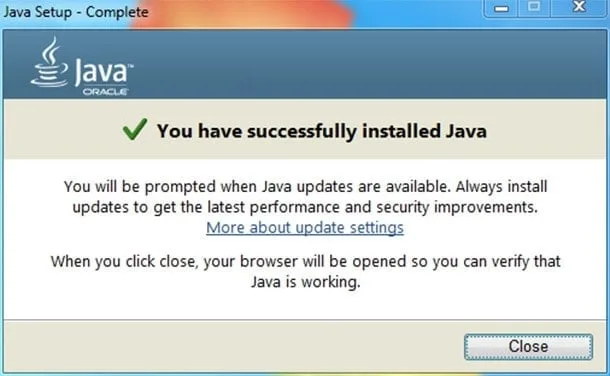
- Go to java.com and download the installer.
- Run it. When the installer offers to remove older versions, say yes.
- Restart any application that uses Java, then verify with
java -version. - Turn on automatic updates: open the Java Control Panel (search for "Configure Java"), go to the Update tab and enable "Check for Updates Automatically".
Option B: a modern JDK from a vendor. For Java 17, 21 or 25 use the vendor's installer or the Windows package manager, which also makes future updates a one-liner:
winget search Temurin
winget install EclipseAdoptium.Temurin.21.JDK
winget upgrade --all
Microsoft's own build works the same way with winget install Microsoft.OpenJDK.21. After installing, close and reopen your terminal, check java -version, and uninstall superseded versions under Settings, Apps, Installed apps.
How to update Java on macOS
- Check what you have with
java -versionand/usr/libexec/java_home -V. - If you use Homebrew, install or upgrade the LTS you want:
brew install --cask temurin@21
brew upgrade --cask temurin@21
- Without Homebrew, download the .pkg installer from your vendor (Adoptium, Microsoft or Oracle). Pick the right build for your Mac: aarch64 for Apple silicon, x64 for Intel. Run the installer.
- If you still have the Java 8 runtime from java.com, open System Settings, find the Java pane at the bottom, and use the Update tab to install the latest update.
- Point JAVA_HOME at the version you want by adding this line to
~/.zshrc:
export JAVA_HOME=$(/usr/libexec/java_home -v 21)
- Remove old JDKs by deleting their folder under /Library/Java/JavaVirtualMachines. The old java.com runtime lives in /Library/Internet Plug-Ins/JavaAppletPlugin.plugin and /Library/PreferencePanes/JavaControlPanel.prefPane; delete both to remove it.
How to update Java on Linux
- On Ubuntu or Debian, update the package list and install the LTS you want:
sudo apt update
sudo apt install openjdk-21-jdk
On RHEL, Rocky or AlmaLinux the equivalent is sudo dnf install java-21-openjdk.
- If several versions are installed, choose the default with
sudo update-alternatives --config java. - Set JAVA_HOME in
~/.bashrc(or/etc/environmentfor all users), for exampleexport JAVA_HOME=/usr/lib/jvm/java-21-openjdk-amd64, then runsource ~/.bashrc. - Verify with
java -versionand remove old packages, for examplesudo apt remove openjdk-17-jdk.
Remove old Java versions
Updating alone is not enough. Old runtimes that stay installed are still exploitable, still show up in vulnerability scans, and applications sometimes keep launching the old version. After every update:
- Windows: uninstall superseded entries under Settings, Apps, Installed apps. The java.com installer can also remove old Java 8 updates for you.
- macOS: delete old folders under /Library/Java/JavaVirtualMachines.
- Linux: remove old packages with your package manager.
- Applications with a bundled runtime: many apps ship their own private Java. Those are updated by updating the app, not by updating Java, so check the vendor's release notes.
Keep Java updated without thinking about it
Security updates for Java arrive on a fixed schedule: Oracle's Critical Patch Updates land in January, April, July and October, and the OpenJDK vendors ship matching builds within days. Put a reminder in the calendar for those months, or better, let your tooling do it: winget upgrade, brew upgrade and apt upgrade all pick up new Java builds, and an endpoint management tool such as Microsoft Intune or an RMM platform can roll them out to every machine. Regular vulnerability scanning as part of your IT security setup will tell you which machines slipped through.
Browsers deserve the same treatment, and they are just as common a target. See how to update your browser for Edge and Chrome.
FAQ, frequently asked questions
How often should I update Java?
At least once a quarter, right after the January, April, July and October security releases. If a critical vulnerability is announced in between, update immediately.
How do I know which Java version I have?
Run java -version in a terminal or command prompt. On Windows you can also see every installed version under Settings, Apps, Installed apps, and on macOS with /usr/libexec/java_home -V.
Which Java version should I install?
For new installations, the newest LTS: Java 25. If an application vendor only certifies an older line, install that LTS (typically 21 or 17) side by side and let the application pick it up. Avoid non-LTS releases on business machines.
Is Java free?
OpenJDK builds such as Eclipse Temurin, Microsoft Build of OpenJDK and Amazon Corretto are free and open source, including for commercial use. Oracle JDK 17 and later are free under Oracle's No-Fee Terms until one year after the next LTS, while Oracle Java 8 and 11 need a paid subscription in a business.
Can I have multiple Java versions installed?
Yes. Keep one LTS as the default and set JAVA_HOME accordingly. On Linux use update-alternatives, on macOS /usr/libexec/java_home -v <version>, and on Windows check that PATH points at the version you want.
What do I do if something breaks after updating Java?
Usually the application expects an older Java line. Install the LTS the vendor certifies next to the new one and point the application at it, or roll back until the vendor ships an update. Check the vendor's release notes before removing the old version on servers.
Do I need Java at all?
If no application on the machine uses it, uninstall it. Fewer runtimes means fewer things to patch.
Need help keeping your systems patched?
Our 24/7 service desk keeps Java, browsers and operating systems current across all your clients and servers, so the next vulnerability scan comes back clean. Contact us if you would rather hand patch management to someone else.